
How LeaguesFinder Works
A simple guide for league secretaries, captains and players. Learn how to register, choose the right package, invite captains and players, manage teams, and use the result card and live scoreboard on match night.
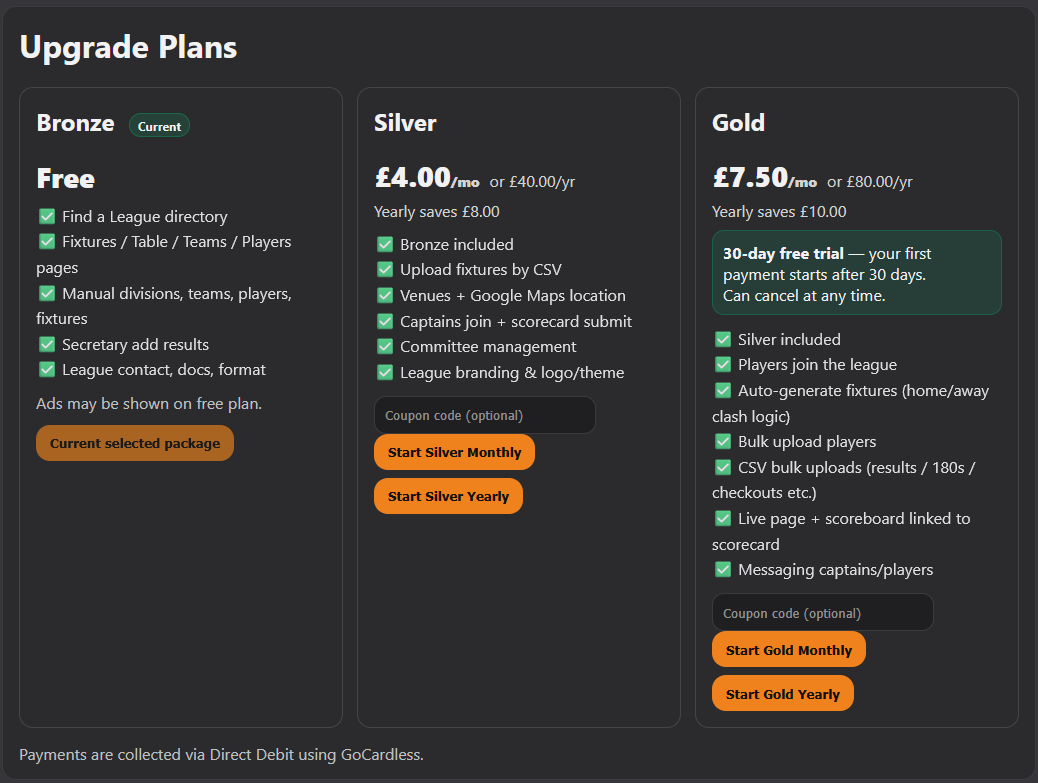
1. Membership Plans
Choose the package that suits your league. You can start on Bronze and upgrade later.
Bronze
- Find a League directory
- Fixtures / Table / Teams / Players pages
- Manual divisions, teams, players and fixtures
- Secretary add results
- League contact, docs and format pages
Silver
- Everything in Bronze
- Upload fixtures by CSV
- Venues + Google Maps location
- Captains join + scorecard submit
- Committee management
- League branding, logo and theme
Gold
- Everything in Silver
- Players join the league
- Auto-generate fixtures
- Bulk upload players
- CSV bulk uploads for results / 180s / checkouts
- Live page + scoreboard linked to scorecard
- Messaging captains and players
2. How a Secretary Joins
Create an account
Go to the register page, create your account, then log in.
Create or open your league
Once logged in, go to your dashboard and create your league or open an existing one.
Choose a package
Start on Bronze for free or choose Silver / Gold if you want extra setup tools, captain access and live match-night features.
Start setting up the league
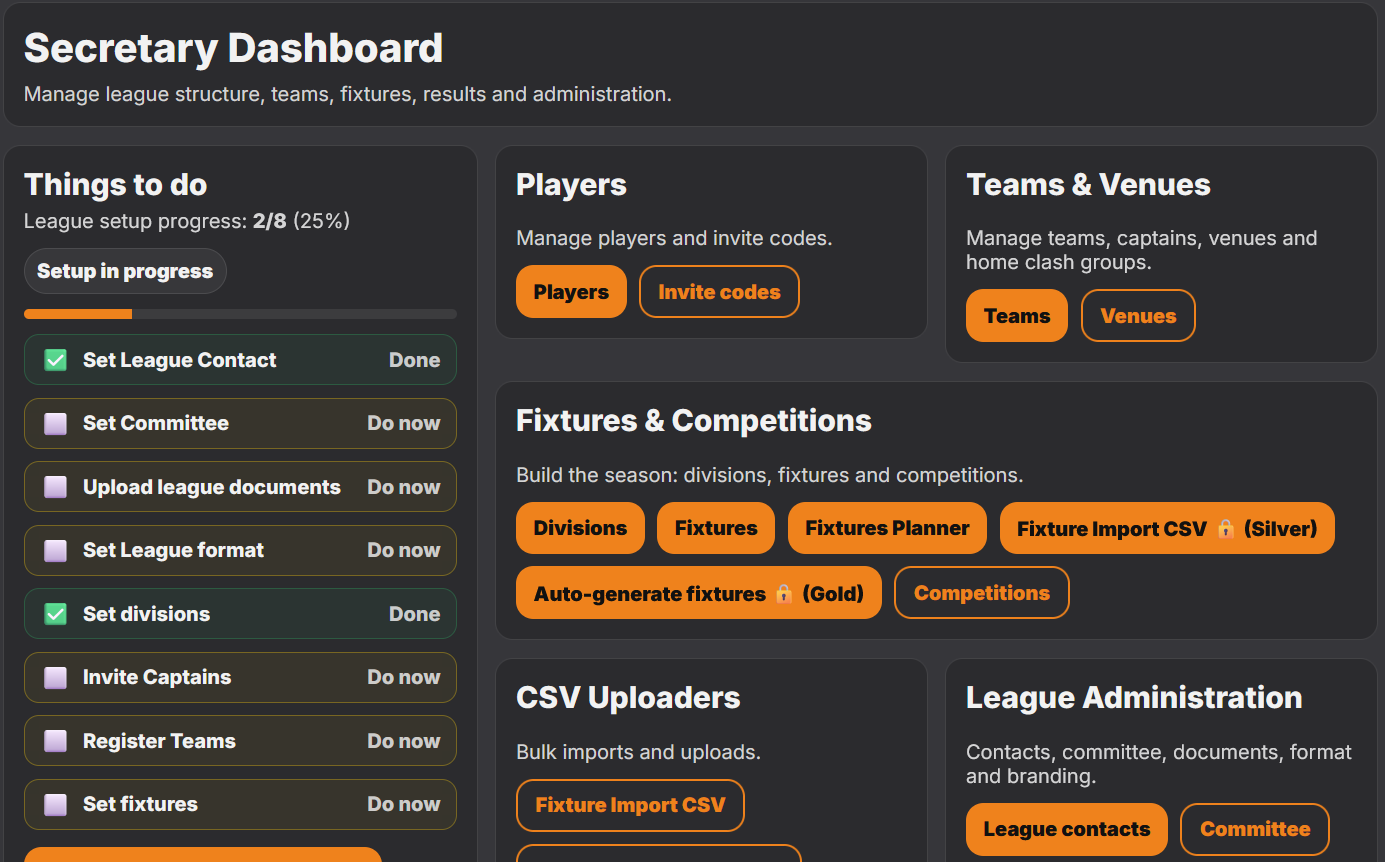
Add divisions, teams, venues, players and fixtures. Invite captains once the basics are ready.
What a Secretary can do
- Create and manage the league
- Set up divisions and seasons
- Add teams, players and venues
- Import fixtures by CSV on supported plans
- Add results manually
- Invite captains
- Approve players where required
- Manage public pages, documents and league info
3. How to Register a League
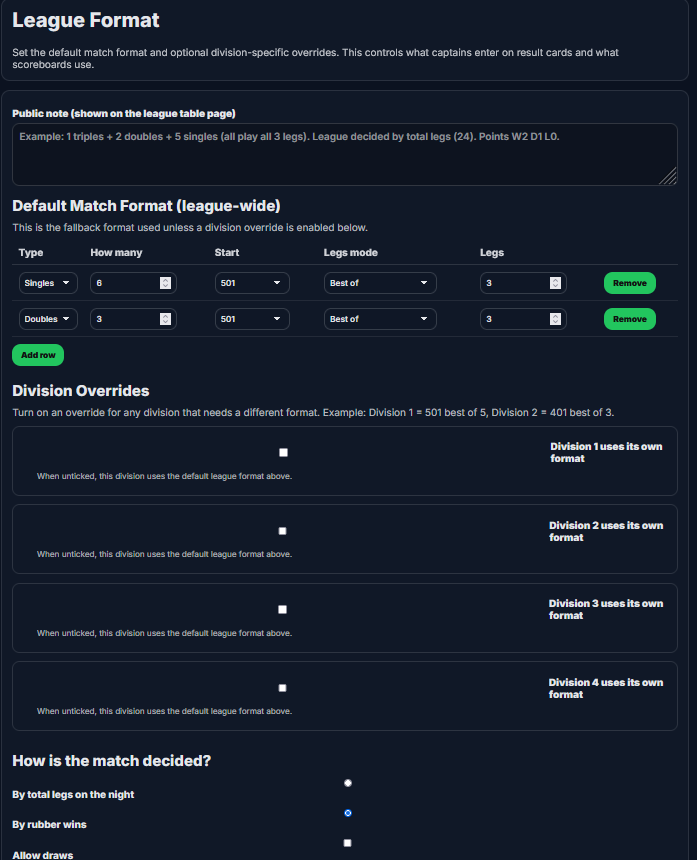
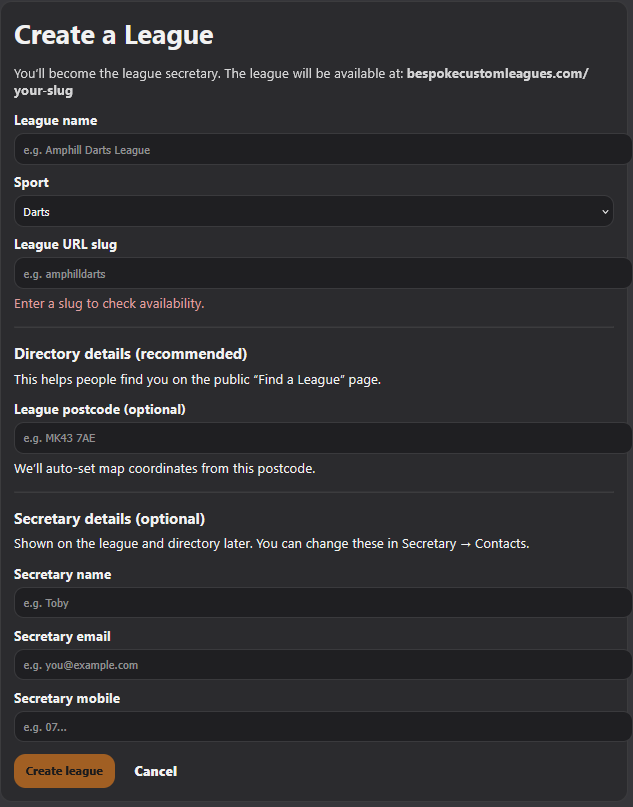
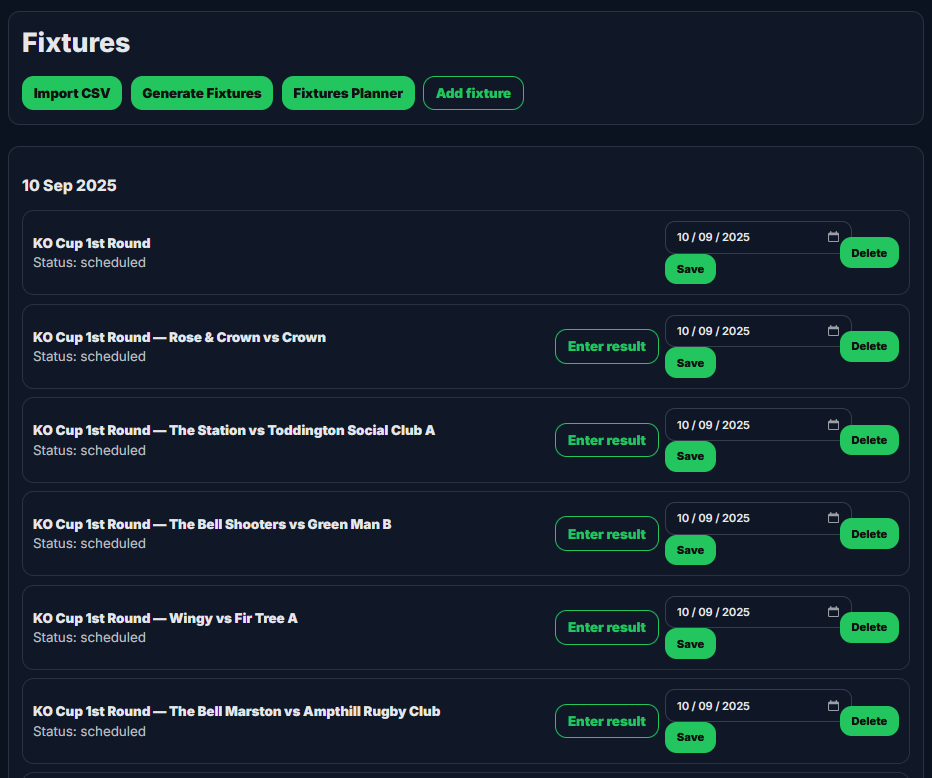
Once the Secretary is registered, the next step is to set up the league ready for the season.
- Create the league and enter the league name and basic details.
- Add divisions.
- Add teams manually, or let captains claim/create teams where your setup allows it.
- Add venues and location details.
- Add players manually, let captains add them, or let players register using invite links.
- Add fixtures manually, upload by CSV, or auto-generate them if using Gold.
- Check the public pages before the season starts.
4. How a Captain Registers
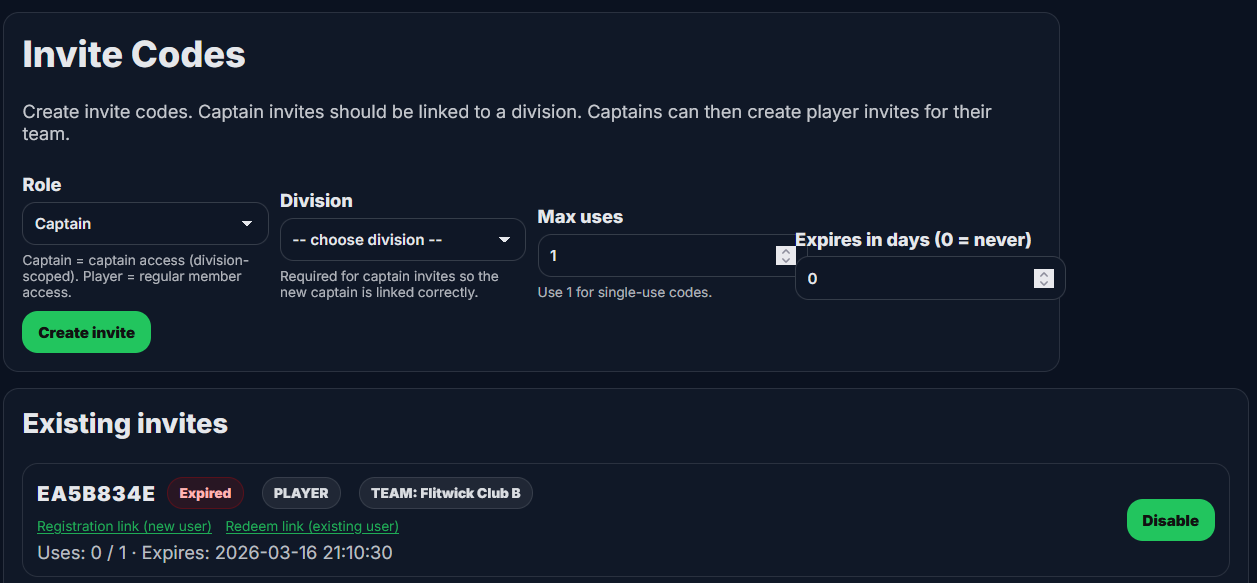
A captain joins after the Secretary sends an invite code or invite link.
Join using invite code
- Go to the register page
- Create an account or log in
- Enter the invite code from the Secretary
- Confirm the invitation
Join using invite link
- Click the invite link
- Create an account or log in
- The system connects your account to the right league/team
- Confirm and continue
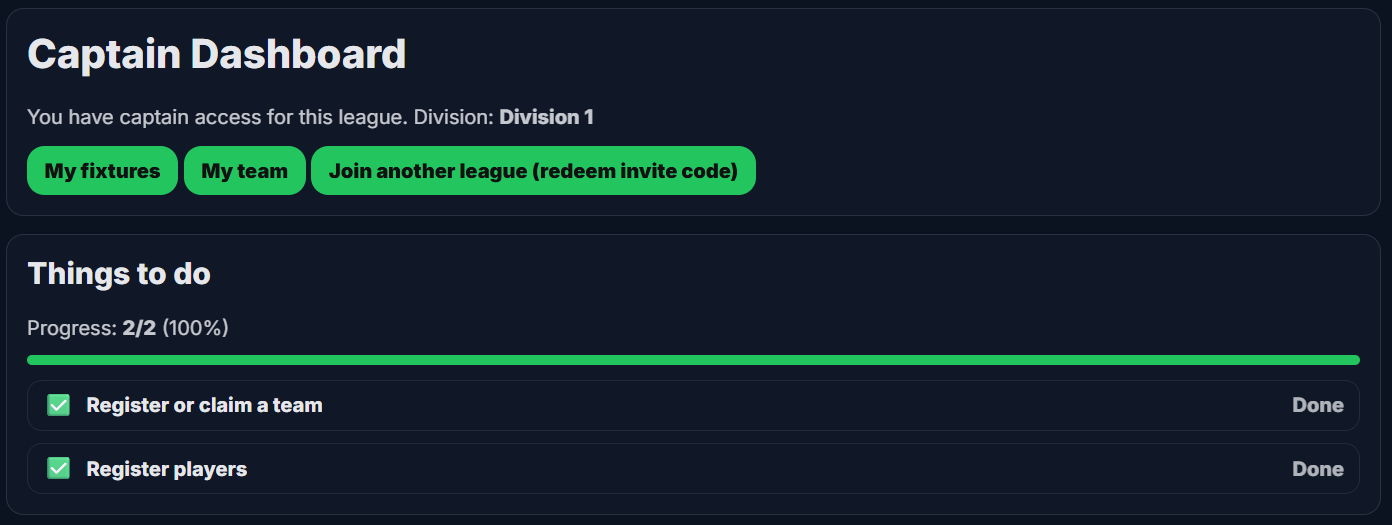
Captain tools
- Claim or create a team
- Add players
- Invite players
- Open fixtures
- Enter results
- Use the live scoreboard
5. How to Claim or Create a Team
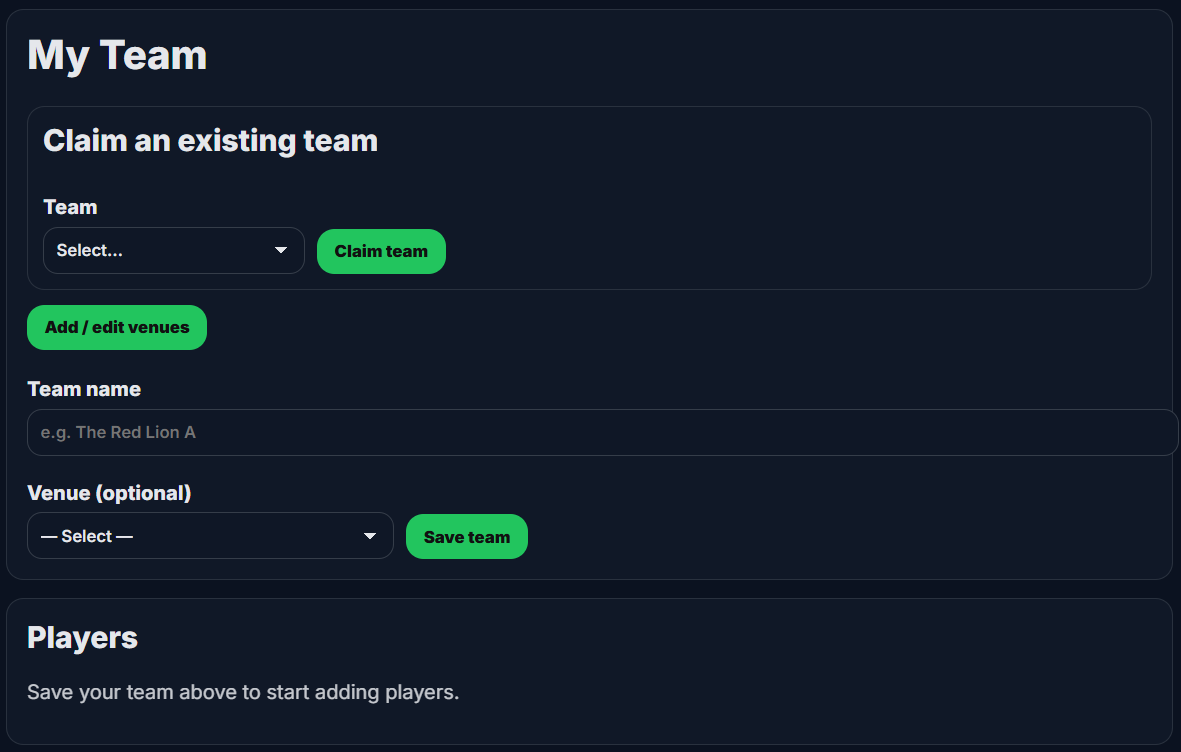
Captains use the My Team page to claim an existing team or set up a new one.
If the team already exists
- Go to My Team
- Find the Claim an existing team section
- Select the team
- Click Claim team
If the team does not exist yet
- Go to My Team
- Enter the team name
- Select a venue if needed
- Click Save team
Venues
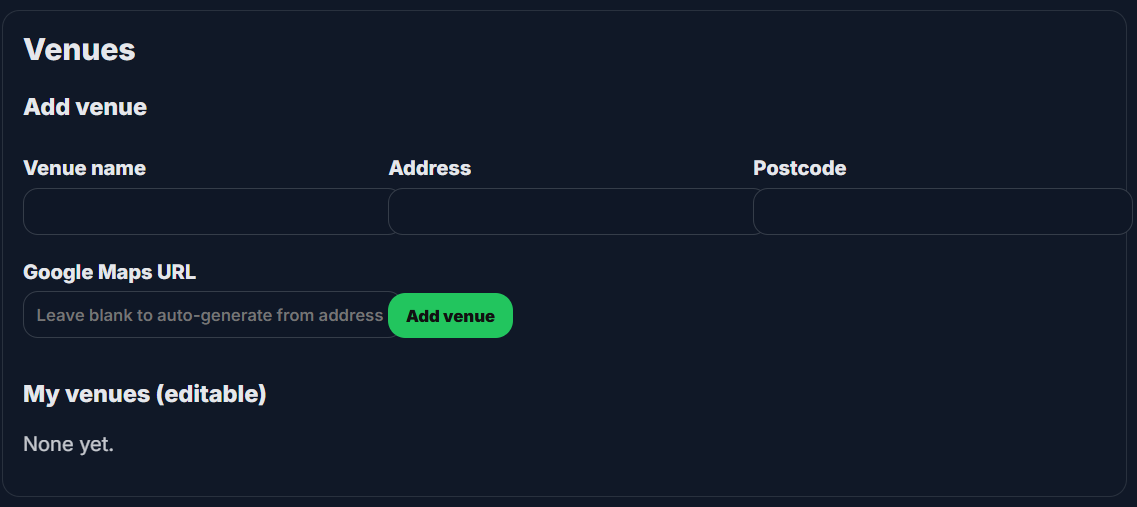
Captains can also add and edit venues they created, including address, postcode and Google Maps URL.
6. How to Register Players
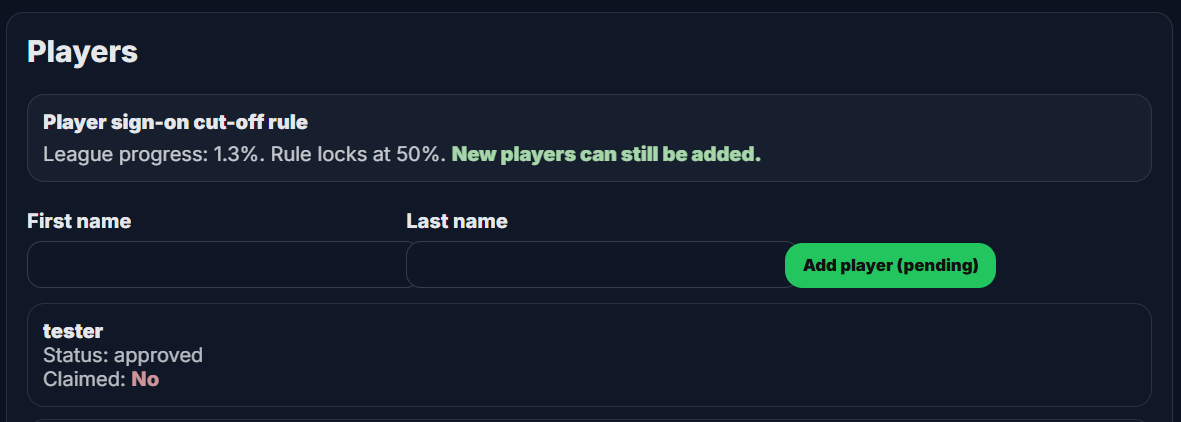
Captains can add players themselves from the My Team page.
Add a player manually
- Go to My Team
- Scroll to the Players section
- Enter first name and last name
- Click Add player (pending)
Invite players to register themselves
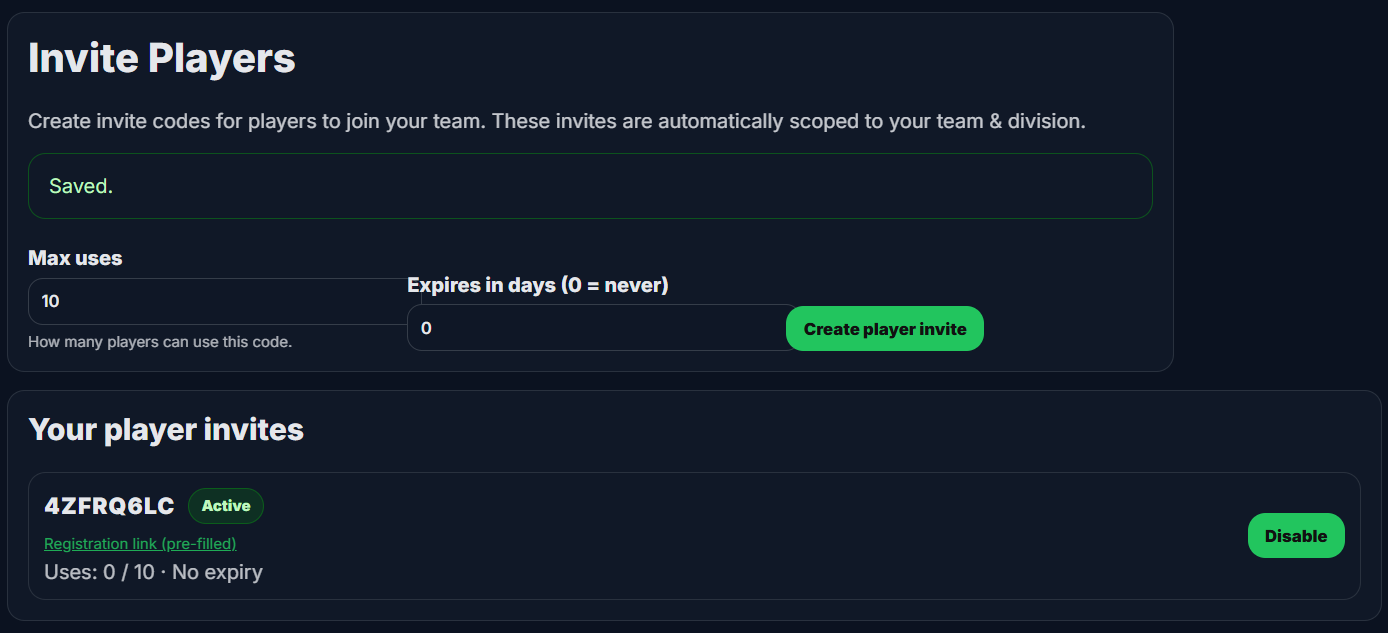
Captains can share an invite code, register link or claim link with players.
7. How Match Night Works
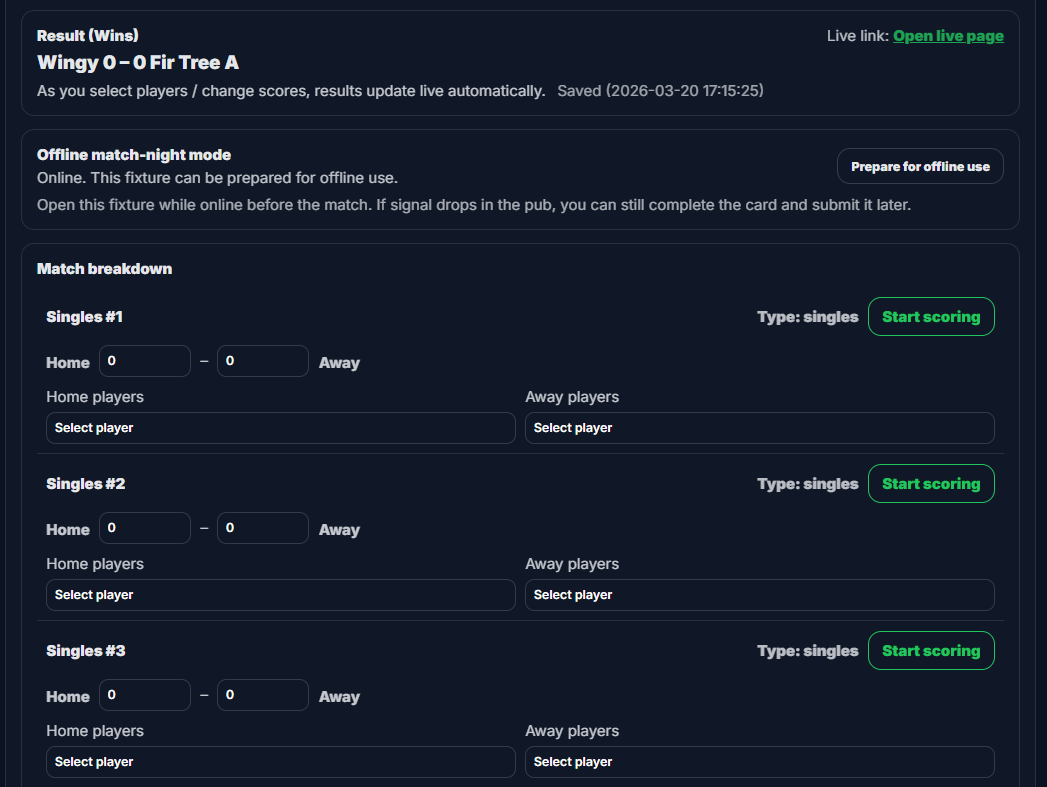
On match night, captains should start from the Fixtures page, open the correct fixture, then complete the result card. The live scoreboard can be used for each game if wanted.
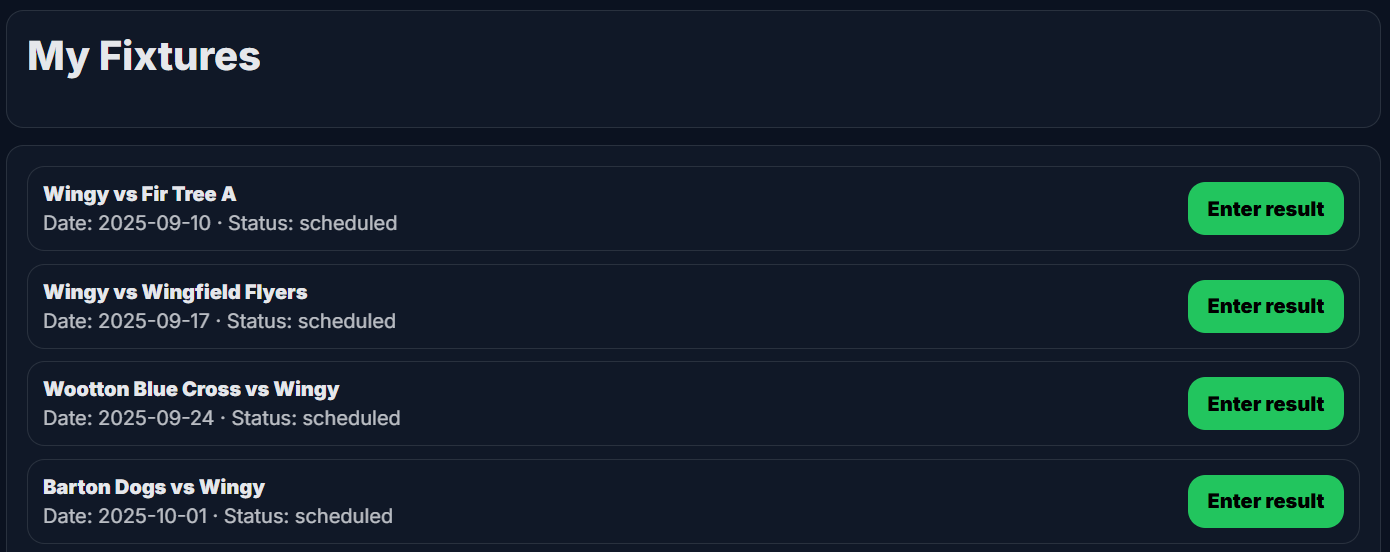
Open My Fixtures
Go to the Captain Fixtures page and find the correct match. Depending on the status, the button may show Enter result, Edit & resubmit, View submitted result or View result.
Open the result card
Click the fixture button to open the result card. Here you can select players, enter game scores, record checkouts and 180s, add notes, and see the live match total update automatically.
Use the scoreboard if you want
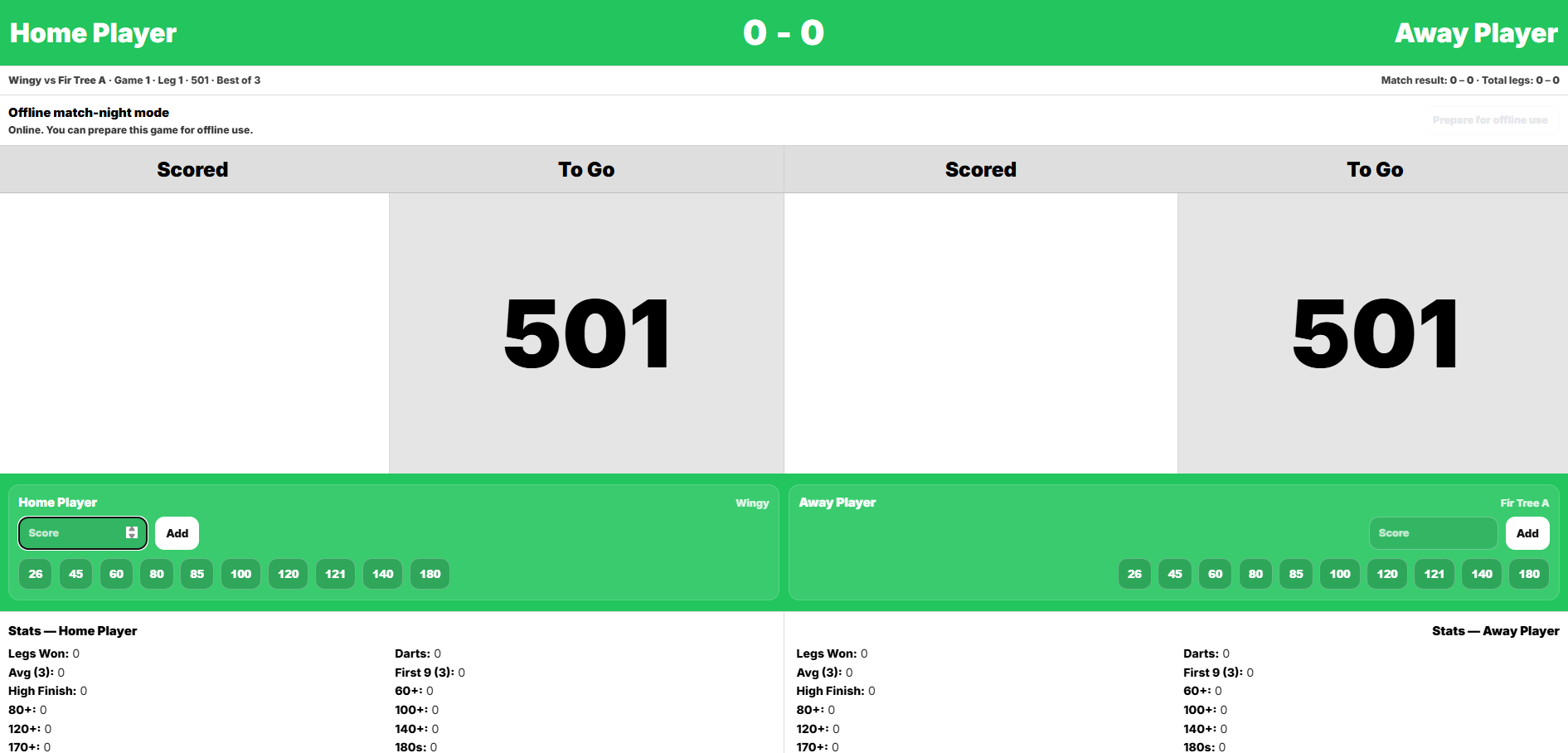
For each game, click Start scoring, Continue scoring or View scoring. The scoreboard shows what each player has scored, what they have left, live stats and an optional offline mode.
Complete captain sign-off
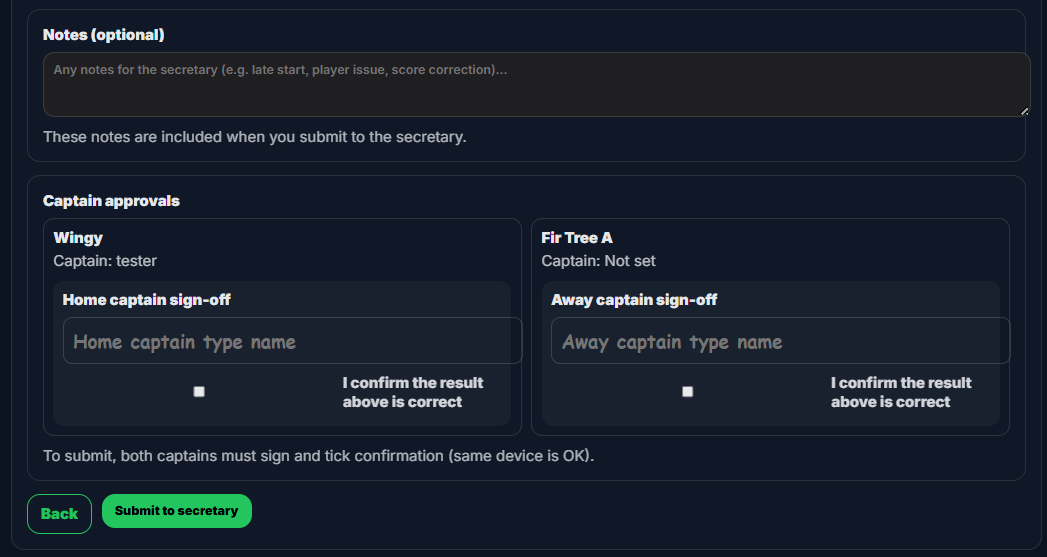
When the result card is finished, both captains type their name and tick the confirmation box to confirm the result is correct.
Submit to secretary
Click Submit to secretary. The result then follows the approval flow.
Result statuses you may see
- Awaiting captain approval
- Pending approval
- Approved
- Rejected
Offline match-night mode
- Open the fixture while you still have signal
- Click Prepare for offline use
- If signal drops, keep entering data as normal
- Sync the pending result or scoring when your connection returns
8. Quick Start Guides
Secretary quick start
- Register an account
- Create your league
- Choose Bronze, Silver or Gold
- Add divisions, teams and fixtures
- Invite captains
- Approve players and results if needed
Captain quick start
- Register using the invite code or link
- Go to My Team
- Claim or create your team
- Add players or send player invite links
- Open My Fixtures on match night
- Complete the result card and submit
Player quick start
- Use the register or claim link from your captain
- Register or log in
- Claim your player slot if needed
- Wait for approval if your league uses approvals
9. Frequently Asked Questions
Can I start on Bronze and upgrade later?
Yes. A league can start on Bronze and move up to Silver or Gold later if extra features are needed.
Can captains add players themselves?
Yes. Captains can add players from the My Team page. Depending on league setup, the Secretary may still need to approve them.
Can captains claim an existing team?
Yes. If the team already exists and is unclaimed, the captain can claim it from the My Team page.
Do both captains need to confirm the result?
Yes. On the result card, both captains type their name and tick the confirmation box before the result is submitted to the Secretary.
Can the scoreboard be used without signal?
Yes. The result card and scoreboard both support offline match-night use when opened and prepared while online first.